Record Rollovers - Understanding the Three Rollover Types
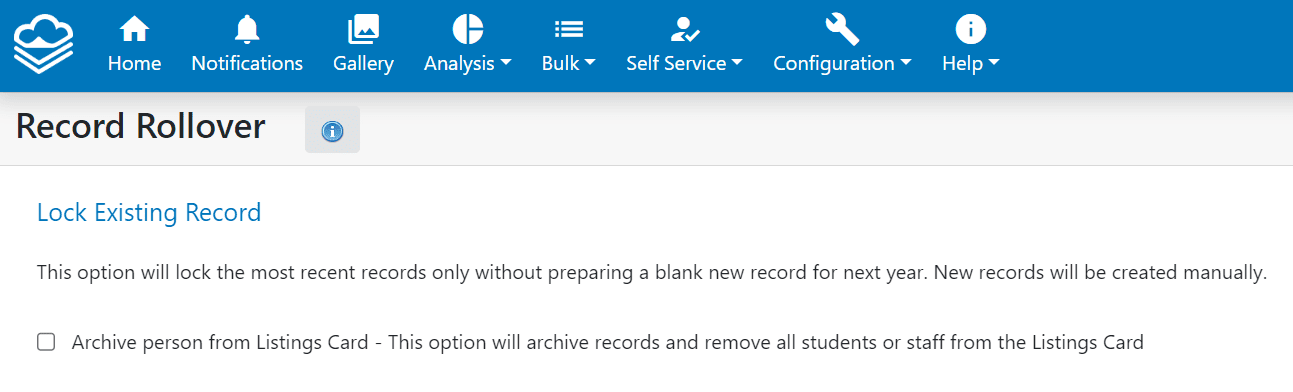
Lock Existing Record
Locking the existing record locks the past records while making it accessible within the Record History. This is a great option for forms about a specific or one time event where the person is not guaranteed to need a record for next year. Examples include VTRAs, Incident Reports, Referrals to Clinical Services, Grade 8 Transitions, etc.
If the person also needs to be removed from the Listings Card, you can select the Archive Person From Listing Card option. This feature removes the person from the Dashboard Listings Card so that they are no longer visible when viewing your records.

If you choose to archive persons from the Listings, you will be required to manually add them back if they require a record and this action can not be undone.
Create a New Record
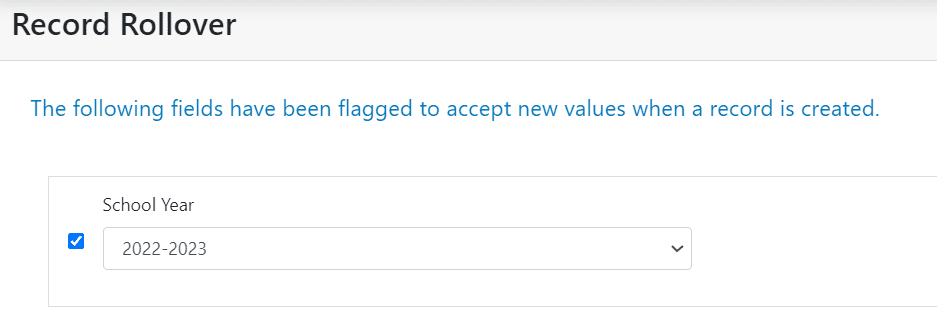
Creating a new record will lock last year’s record and create a blank record for each person/location that has been selected. This is a great option for records that will be needed for the next school year, and where the current year’s data will not apply. Examples of forms to include are Teacher Evaluations, Math Forms, Literacy Forms, etc.
Depending on how your form is customized, you may have the option to select preset values for specified fields within the new records.
Copy Data into a New Record
Copying data into a new record copies all of the data in the current records to the newly created records with the exception of fields flagged with a Do Not Clone attribute. Examples of forms that are good candidates for this rollover type include IEPs, IIPs, IPPs, Student Plans, etc.

Fields that you wish to remain blank in the new records need to be flagged as "Do Not Clone" within the form settings.
The "Do Not Clone" option is great for fields where the data will not apply next year. Some examples of fields that need Do Not Clones include Subjects tabs on an IEP, Signature sections and Notifications